Free QR Code Menu Generator: Build a Live Menu in Minutes
You don't need a designer or a budget to get your menu live behind a QR code today. This guide shows you how to use a free QR code menu generator the right way — and why a static PDF behind a code isn't a real digital menu. Build one in 5 steps, for free.

You need a menu behind a QR code — today, and for free
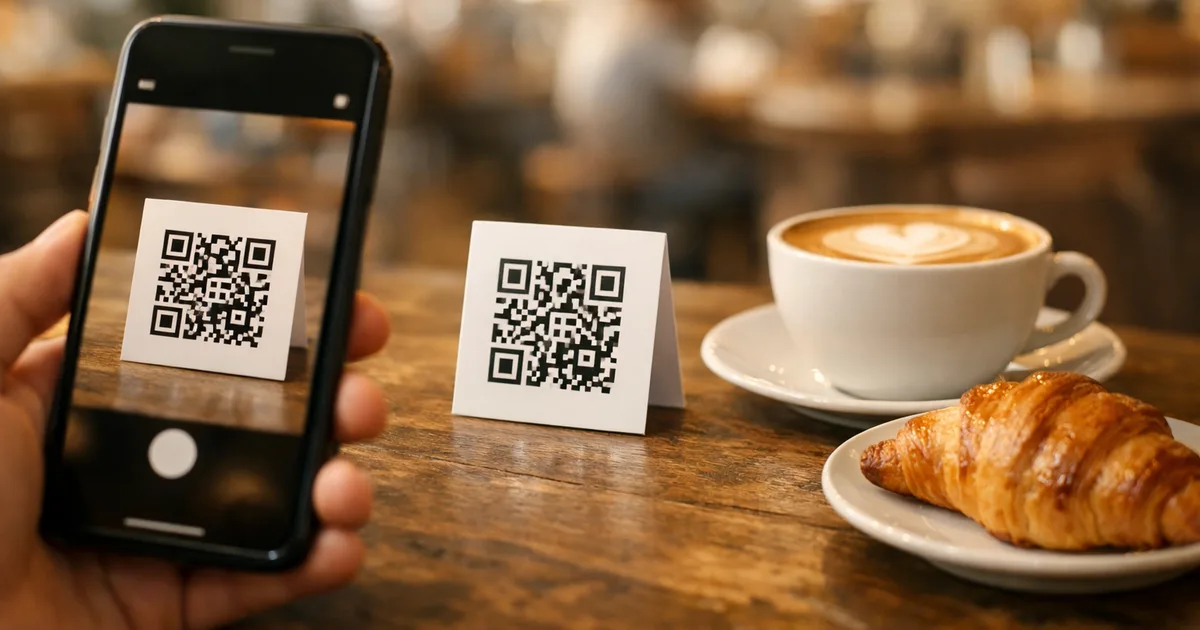
If you’re here, you probably don’t want a lecture on what a QR code menu is. You want one live on your tables today, without paying a designer or a monthly fee just to test it. Maybe a guest just asked for an allergen list you couldn’t give. Maybe your printed menu is out of date again. Maybe you simply have a PDF and a phone and want the two to meet.
Good news: you can generate a free QR code menu for your restaurant in minutes, and you don’t need any technical skills to do it. The catch — and it’s an important one — is that not every “free QR menu maker” gives you the same thing. Many of them just turn a PDF into a QR code. That sounds fine until a guest scans it at the table and has to pinch, zoom and drag around a document built for A4 paper, on a screen the size of their palm.
This guide does two things. First, it shows you how to create a genuinely free QR code menu the right way. Second — because being useful matters more than being promotional — it’s honest about the difference between a static PDF behind a code and a real digital menu, so you choose the option that won’t embarrass you in front of guests.
TL;DR
- You can create a free QR code menu with no credit card and no technical skill.
- A PDF behind a QR code is not a real digital menu — it reads badly on phones, can’t be updated without re-exporting, and carries no allergens, languages or analytics.
- A dynamic digital menu fixes all of that: mobile-first layout, instant edits, allergen tags, multiple languages, and a code that never changes.
- ShevaFood is a free QR code menu generator that builds the dynamic kind — you can be live in about five steps.
- If you already have a PDF, use it as your checklist and turn it into something your guests will actually enjoy reading.
Free and instant: what a good generator gives you
The first thing restaurateurs want from a QR code menu generator is simple: free, and now. You shouldn’t have to commit a budget to find out whether a digital menu works for your venue.
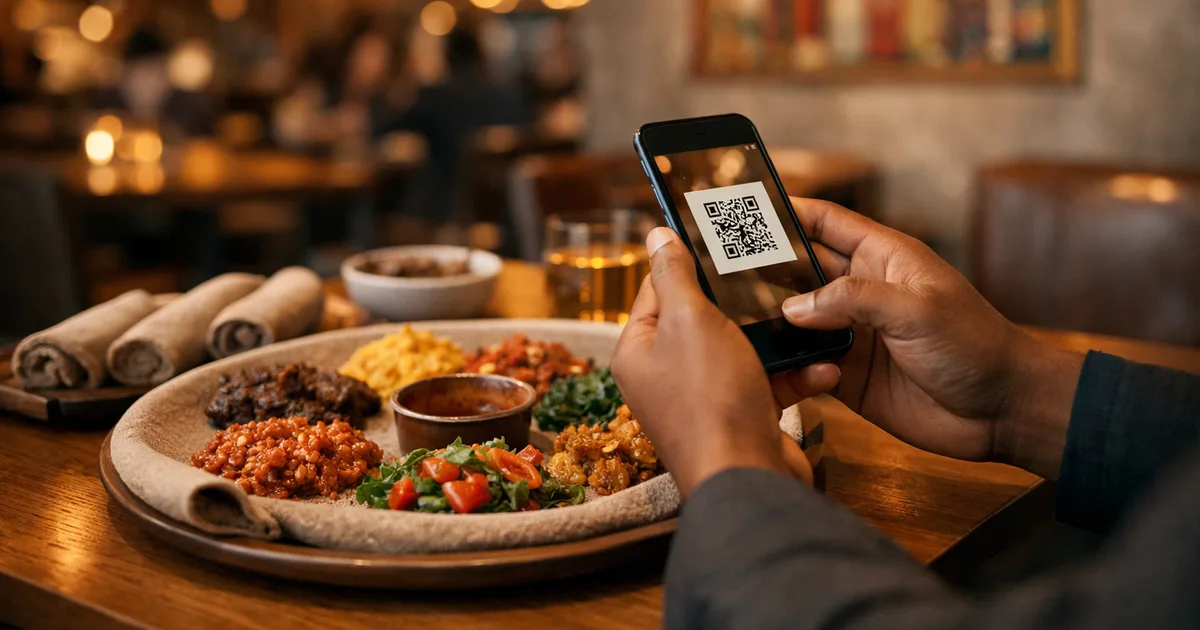
With ShevaFood you create an account with no credit card, build your menu, and a QR code is generated automatically that points to your live menu. You download it, print it onto table cards, stickers, an A-board or your window, and you’re serving. There’s no app for your guests to install and no account for them to create — they point their phone camera at the code and the menu opens in the browser in about a second.
The part people underestimate is what “instant” means after launch. Because the QR code points to a live page rather than to a fixed file, your code never has to change. Sell out of a dish? Hide it. New price? Edit it. Summer special? Add it with a photo before lunch. The same printed code keeps working forever, and every change is live on every table the moment you save it — at zero printing cost.
The PDF-to-QR trap: why a document behind a code isn’t a menu
Here’s the honest part. The fastest way to get something behind a QR code is to upload a PDF to a free generator and print the code it spits out. It works, it’s free, and for a weekend pop-up it might even be enough.
But for a real restaurant, a static PDF behind a QR code creates more problems than it solves, and your guests feel every one of them:
- It’s painful on a phone. PDFs are laid out for paper. On mobile, guests pinch, zoom and scroll sideways to read a single price. That friction is the exact opposite of the smooth experience a QR menu is supposed to deliver.
- You can’t update it. Change a price and you have to re-export the PDF, re-upload it, and — if the generator baked the file into the code rather than linking to it — sometimes reprint the code entirely. The “instant” promise evaporates.
- It carries no real allergen handling. A line of small print is not the same as a dish a guest can filter or tap for its allergens. In many markets, clear allergen information is a legal expectation, not a nicety — in the UK, for instance, the Food Standards Agency requires allergen information for 14 named allergens.
- It can’t be multilingual without multiplying files. One PDF means one language. Serving international guests means juggling a separate file — and often a separate code — per language.
- It tells you nothing. A PDF can’t show you which dishes guests actually look at. A dynamic menu can.
None of this means free is bad. It means free should still be a real menu. The good news is you don’t have to choose between “free” and “good” — a dynamic generator gives you both.
If you only take one thing from this article: don’t print a code that opens a PDF. Print a code that opens a menu.
Allergens, languages and updates: what a generator-only tool can’t do
This is where the gap between a basic QR-from-PDF tool and a real digital menu becomes obvious — and it’s exactly the gap ShevaFood is built to close.
- Allergens, per dish. You tag each dish once, and the allergen information shows on every guest’s screen, every time, in their language. When a recipe or supplier changes, you update the tag in one place and it’s instantly correct everywhere. (Always confirm verbally with at-risk guests — a clear menu supports your team, it doesn’t replace them.)
- Many languages from one code. You build the menu once and switch on the languages your guests speak; they tap a selector and read the whole thing — dish names, descriptions, allergens, prices — in their own words. One printed code covers every language. For a deeper look at why this matters in a tourist city, see our guide on QR code menus for London restaurants.
- Updates in seconds, forever. Because the menu is dynamic, there’s no marginal cost to keeping it accurate all day — which protects both your margins and your reputation in a world where guests photograph everything.
These three capabilities are the line between “I put my menu behind a QR code” and “I have a digital menu.” A generator that only converts a file can’t cross it.
Static PDF-behind-a-QR vs a dynamic digital menu
| What guests get | PDF behind a QR code | Dynamic digital menu (ShevaFood) |
|---|---|---|
| Mobile reading experience | Pinch-and-zoom on an A4 document | Built for phones, readable instantly |
| Updating a price or dish | Re-export and re-upload the file | Edit once, live on every table |
| Allergen information | Static text, easy to outdate | Tagged per dish, always current |
| Languages | One file (often one code) per language | Many languages from a single code |
| The QR code itself | May need reprinting on changes | Never changes — print once |
| Cost to start | Free | Free, no credit card |
| Insight into popular dishes | None | Built in |
The takeaway isn’t “PDFs are evil.” It’s that if you’re going to the trouble of putting a code on every table, the thing behind it should be worth scanning. For the full, format-by-format breakdown of how QR menus work end to end — setup, costs, mistakes and platform choice — see our pillar guide, The Complete Guide to QR Code Menus for Restaurants.
How to create a free QR code menu in 5 steps
You don’t need a developer or a designer, and you don’t need to pay to find out if it works. Here’s the whole path.
Step 1 — Create your free account
Go to www.shevafood.com and click "Get started now". There’s no credit card required to begin, so you can build and preview your entire menu before deciding anything.
Step 2 — Build your menu (or start from your PDF)
Add your categories — starters, mains, sides, drinks — then add each dish with a name, description, price and photo. Already have a PDF menu? Don’t bury it behind a code. Use it as your checklist and type the items in, so the result is a real, mobile-friendly menu instead of a document your guests have to wrestle with.
Step 3 — Tag allergens and switch on languages
Mark the allergens on each dish so guests can order safely, and enable the languages your guests actually speak so the whole menu translates with a tap.
Step 4 — Generate your QR code
Your QR code is generated automatically and points to your live menu. Download it and place it on table cards, stickers, A-boards or the window. One code serves your entire menu — and because it points to a live page, you’ll never have to reprint it when something changes.
Step 5 — Test it, then go live
Scan the code with an iPhone and an Android, check the menu loads fast and reads well, switch languages, and confirm your prices. When it looks right, you’re live — and every future edit is instant and free.
For a fuller walkthrough with screenshots, our step-by-step guide to creating a QR code menu covers each stage in detail.
Create your free QR code menu today
Frequently asked questions
Yes — you can create your account and build your full menu with no credit card, then generate and download your QR code. You only ever consider a paid plan once you’ve seen it working on your own tables, and you can cancel anytime.
You can, but you shouldn’t simply hide it behind a code. A PDF reads badly on phones and can’t be updated easily. The better move is to use your PDF as a checklist and rebuild it as a dynamic menu in a few minutes — same content, far better experience, and you’ll never have to re-export a file again to change a price.
No. Your code points to a live page, not to a fixed file, so the printed code never needs to change. You edit the menu in your dashboard and it updates instantly on every table — the QR code stays exactly the same.
A PDF-to-QR tool simply links a document. A dynamic QR code menu generator like ShevaFood gives you a mobile-first menu with per-dish allergen tags, multiple languages from one code, instant updates and insight into popular dishes — the things a static file can’t do. See our comparison of physical and digital menus for the wider picture.
Yes. A single print run often costs more than a month of a digital menu — and you pay it again every time something changes. With a dynamic menu, updates are free and instant, so the ongoing cost of keeping your menu accurate drops to zero. Our breakdown of the real benefits of QR code menus goes into the numbers.
The bottom line
A free QR code menu generator can put your menu on every table in minutes — but what it puts there is the whole game. A static PDF behind a code is free and fast, and it’s also hard to read, impossible to update easily, and silent on allergens, languages and analytics. A dynamic digital menu is just as free to start, and it’s the version your guests will actually enjoy: built for phones, current to the minute, readable in their language.
So don’t settle for a document behind a code. Build the real thing. Create your free ShevaFood menu and have a proper QR code menu live before your next service.
Sources
- Scan a QR code with your iPhone camera — Apple Support
- Scan QR codes on Camera from Google (Android) — Google
- Allergen guidance for food businesses — Food Standards Agency